How to use HackAnyInterview
Follow these steps to install the desktop app, approve the prompts your computer shows, and start your first session.
We've picked your system automatically — switch if you're setting up a different computer.
Download the app
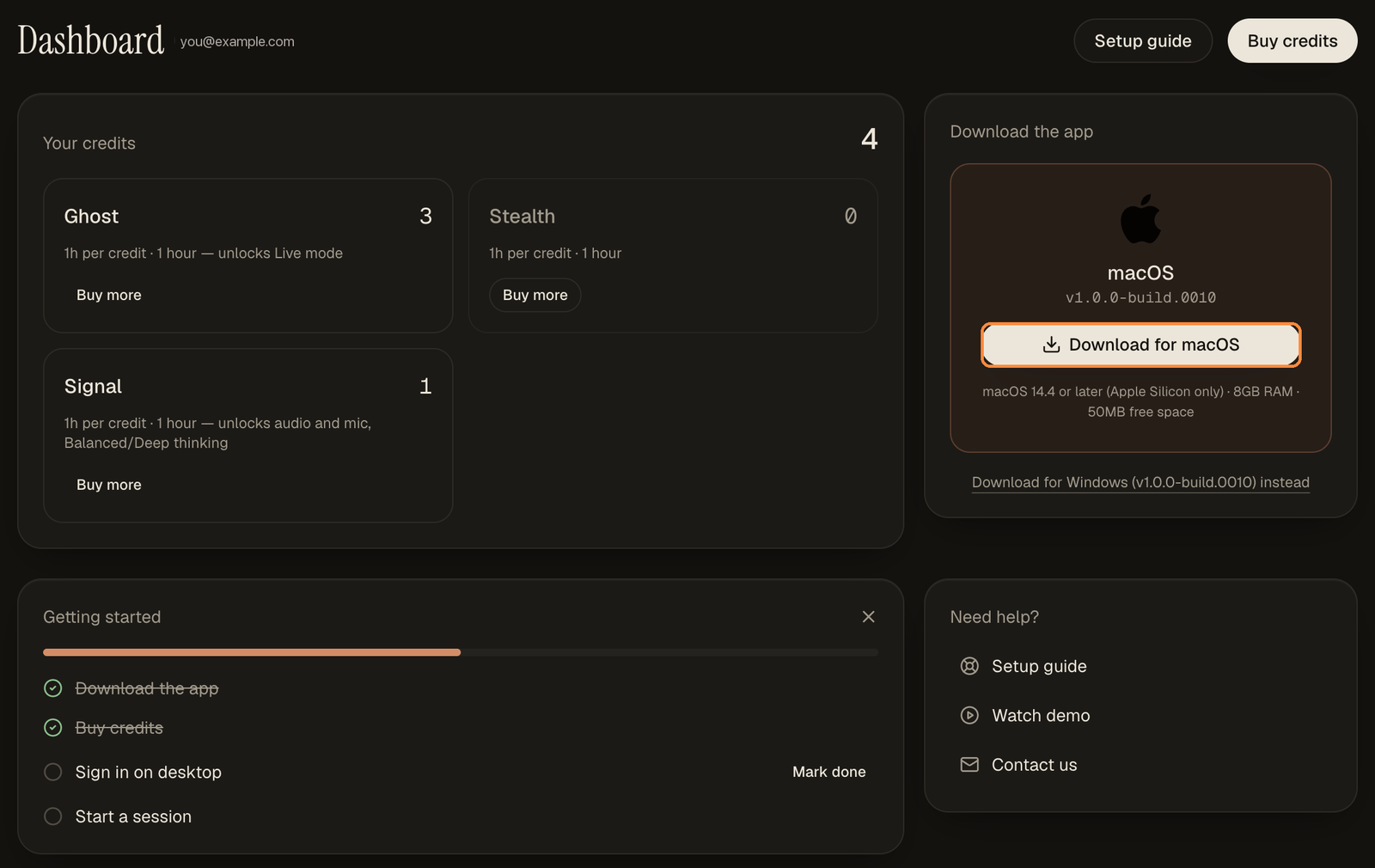
Sign in to your dashboard and click Download for macOS in the Download the app card. Your browser saves a file named like HackAnyInterview-1.0.0-build.0020-arm64.dmg.
Install it
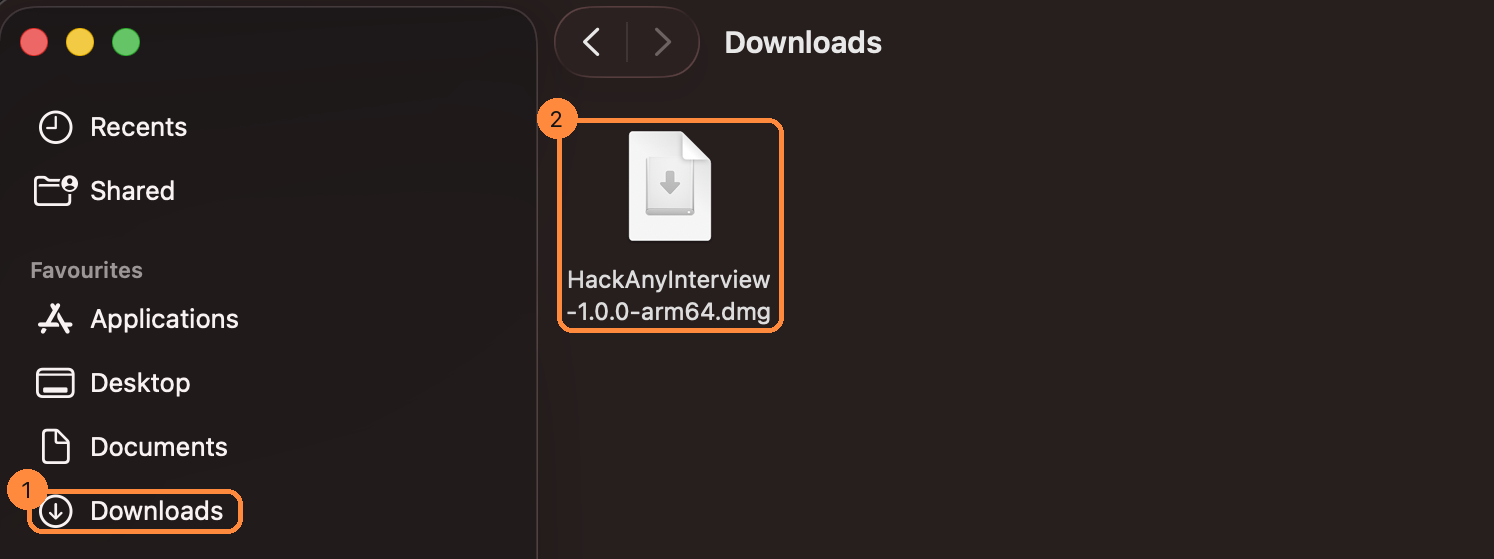
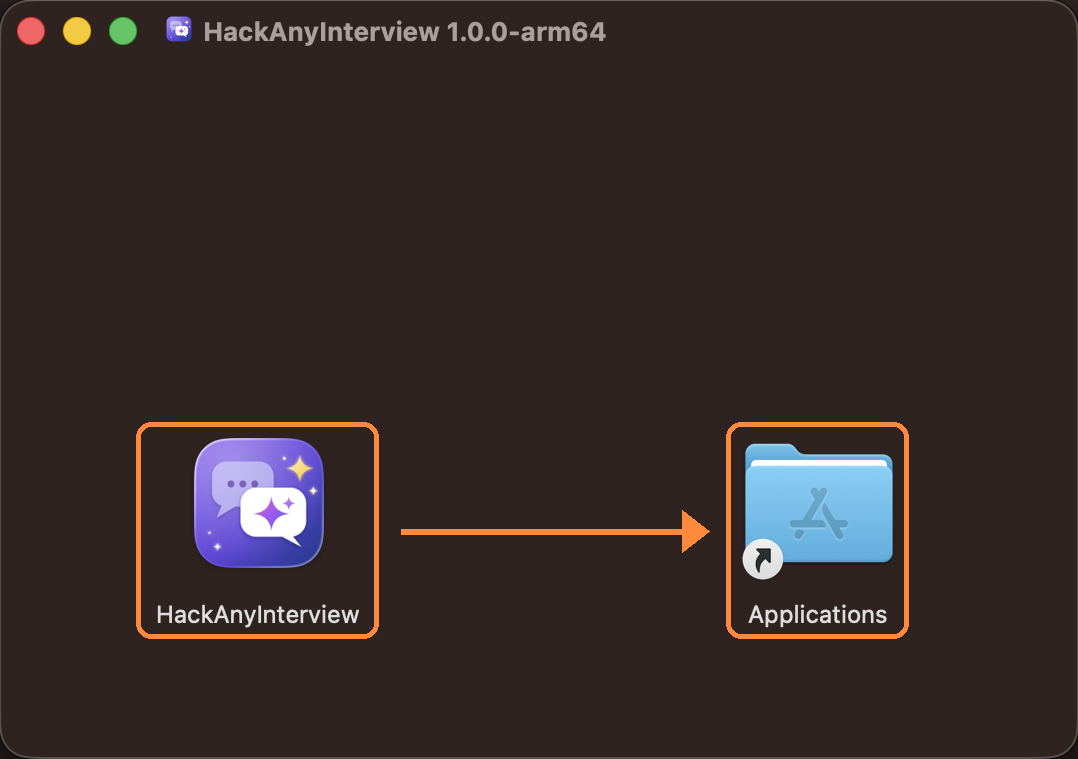
Open Finder, go to Downloads and double-click the .dmg file. A window opens showing the app and a shortcut to your Applications folder — drag the app icon onto Applications to install it.
Open the app
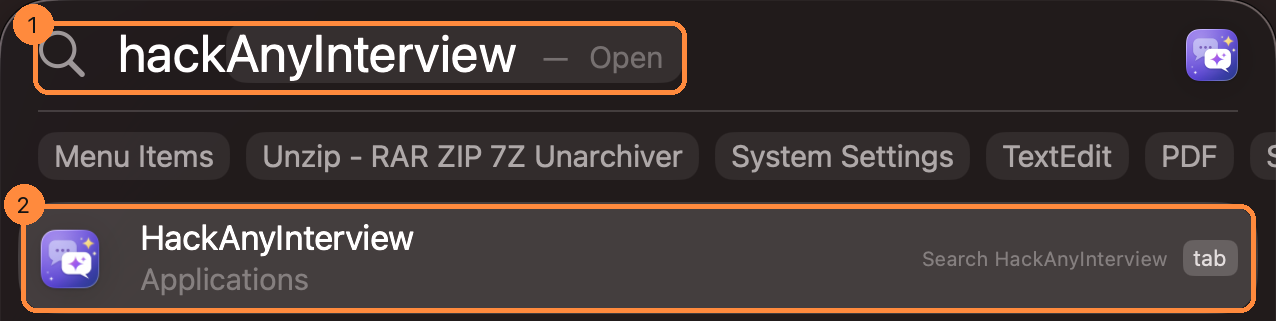
Press ⌘ + Space to open Spotlight, type HackAnyInterview and press Return. You can also open it from Launchpad or the Applications folder.
Allow it to open
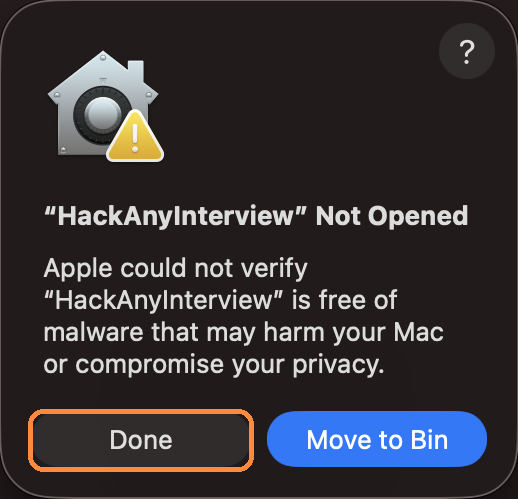
The first time you open the app, macOS stops it with a “HackAnyInterview” Not Opened message.
- Click Done. Don't click Move to Bin — that deletes the app.
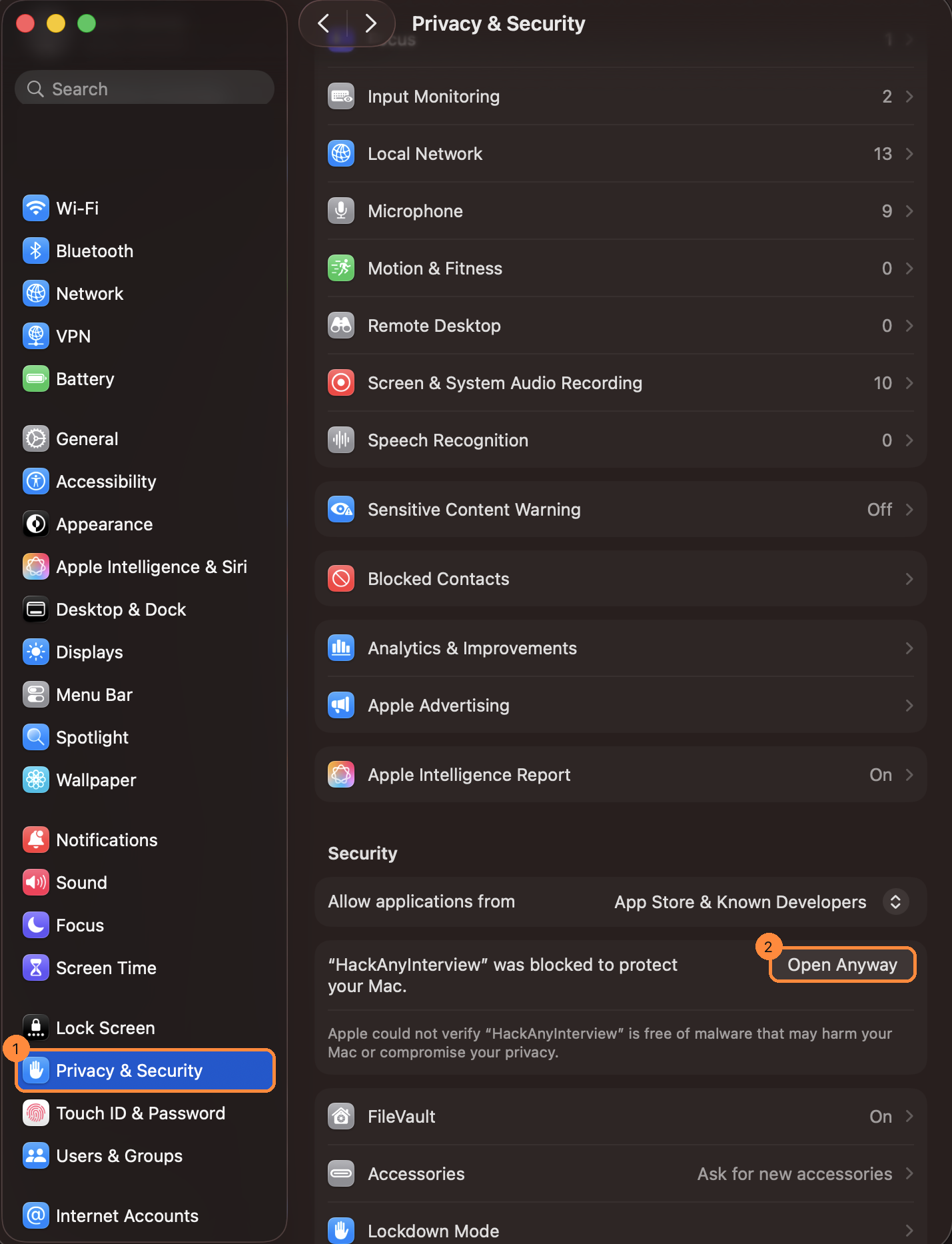
- Open System Settings → Privacy & Security and scroll down to the Security section.
- Next to “HackAnyInterview” was blocked to protect your Mac, click Open Anyway.
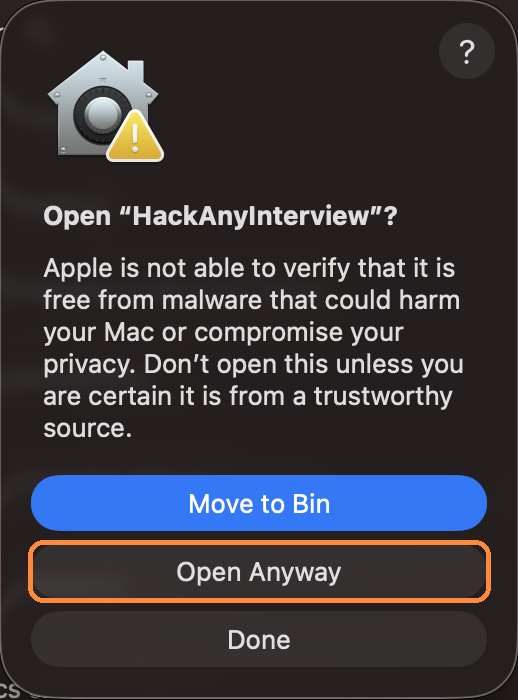
- In the dialog that appears, click Open Anyway again and confirm with Touch ID or your Mac password if asked.
You only need to do this once. From now on the app opens normally.
macOS Gatekeeper blocks the first launch of any app downloaded outside the App Store that Apple hasn't verified, and shows the “Not Opened” warning. Clicking Open Anyway is a one-time approval for this app only — it doesn't lower your Mac's security settings for anything else.
Only do this for the copy you downloaded from your HackAnyInterview dashboard.
Allow keychain access
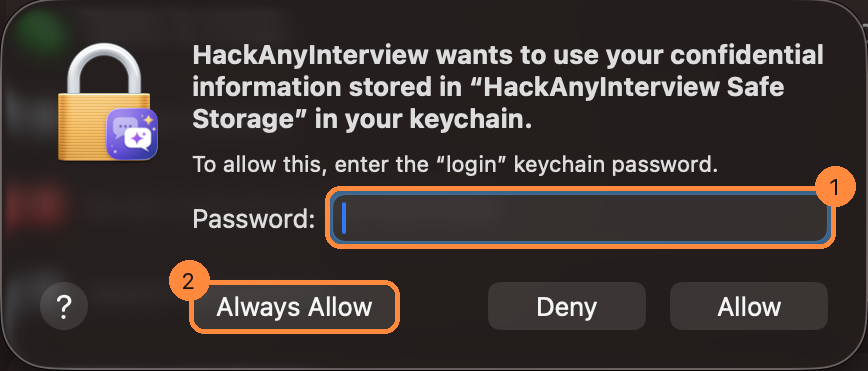
macOS asks whether HackAnyInterview can use information stored in your keychain. Enter the password you use to log in to your Mac, then click Always Allow.
Choosing Allow instead works too, but macOS will ask again every time you open the app. If you click Deny, the app can't remember your sign-in.
The app keeps your sign-in encrypted using an entry called “HackAnyInterview Safe Storage” in your Mac's Keychain — the same secure store Safari and other apps use for saved passwords. That's what keeps you signed in between launches. The password you type here goes to macOS to unlock the Keychain; the app never sees it and it's never sent to us.
Sign in
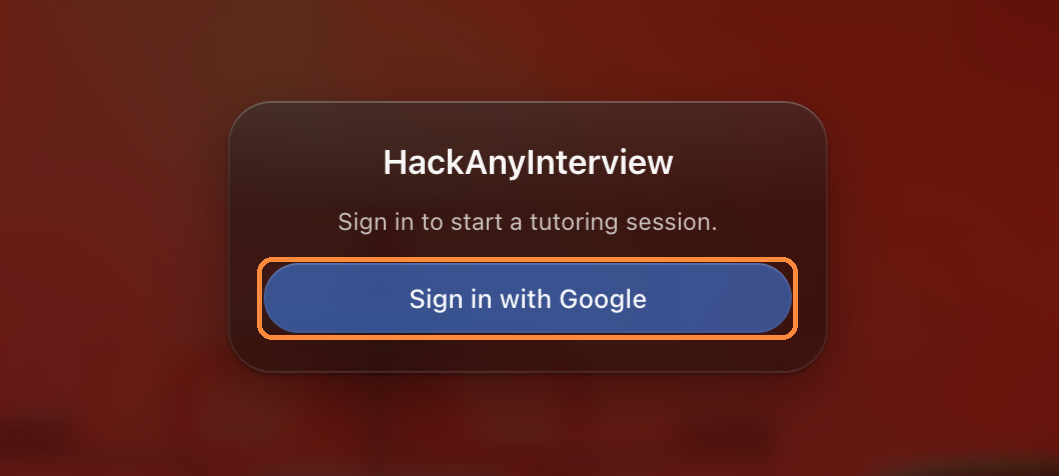
Click Sign in with Google. Your browser opens so you can pick your Google account, then sends you back to the app.
Use the same Google account you use on the website — your credits belong to that account, so signing in with a different one will show no credits.
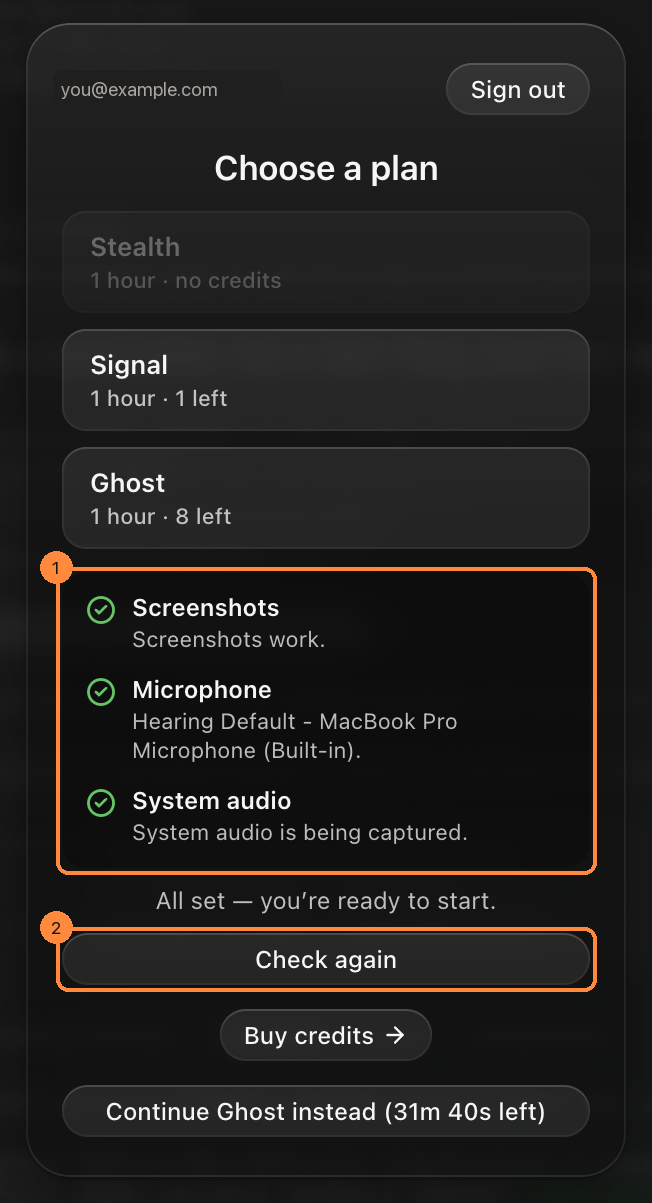
Choose a plan
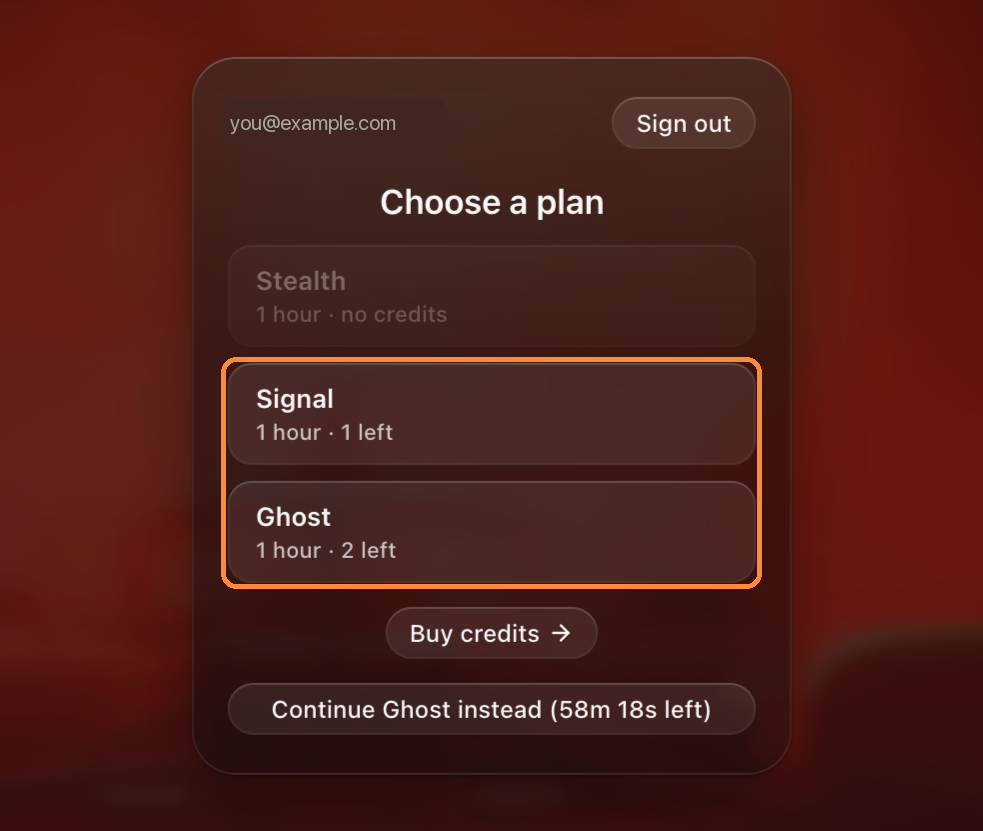
Pick the plan you want for this session. Each credit gives you one hour, and the number under each plan shows how many credits you have left. Plans you have no credits for are greyed out — use Buy credits to top up.
If you already have a session running, a Continue … instead button lets you pick it back up with the time it has left.
Check your system
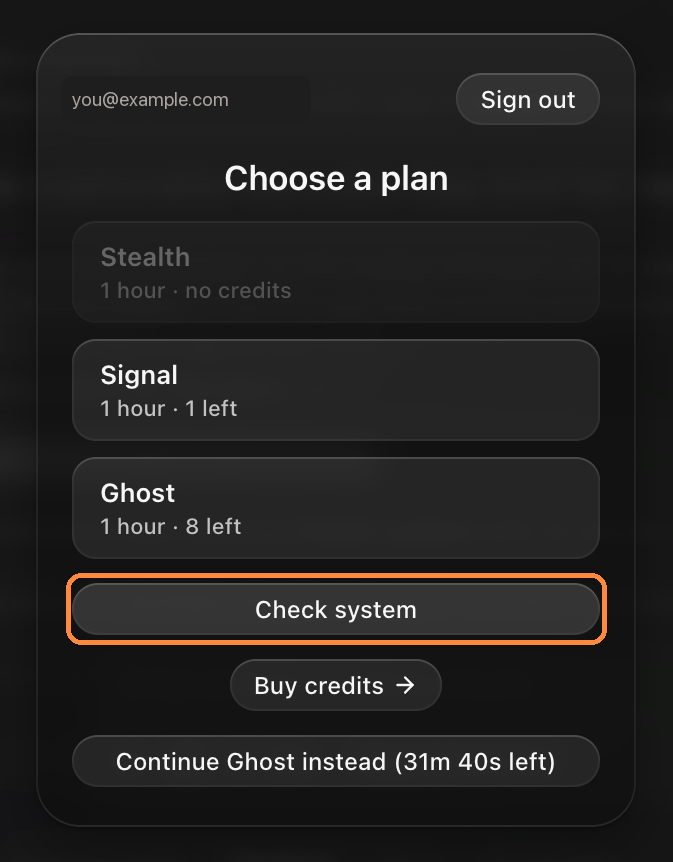
Before you start, click Check system on the plan screen. It makes sure the three things a session relies on actually work, so none of them fails in the middle of an interview:
- Screenshots — capturing the question on your screen.
- Microphone — for dictation and your voice in Live mode.
- System audio — hearing what the interviewer says.
Each row shows a green tick when it works. If one fails, use its Open Settings link to jump straight to the right place, turn HackAnyInterview on under Privacy & Security, then quit and reopen the app (macOS applies screen and audio permissions only after a relaunch) and click Check again.
You'll hear a short tone while it tests system audio — that's the sound it listens for, and it's normal.
The check runs the real thing, not just a permission lookup: it takes a test screenshot, opens your microphone and captures a moment of system audio. On macOS a denied screen or audio permission can still look “on” while silently capturing nothing, so this catches a half-granted permission before it costs you an interview.
Start your session
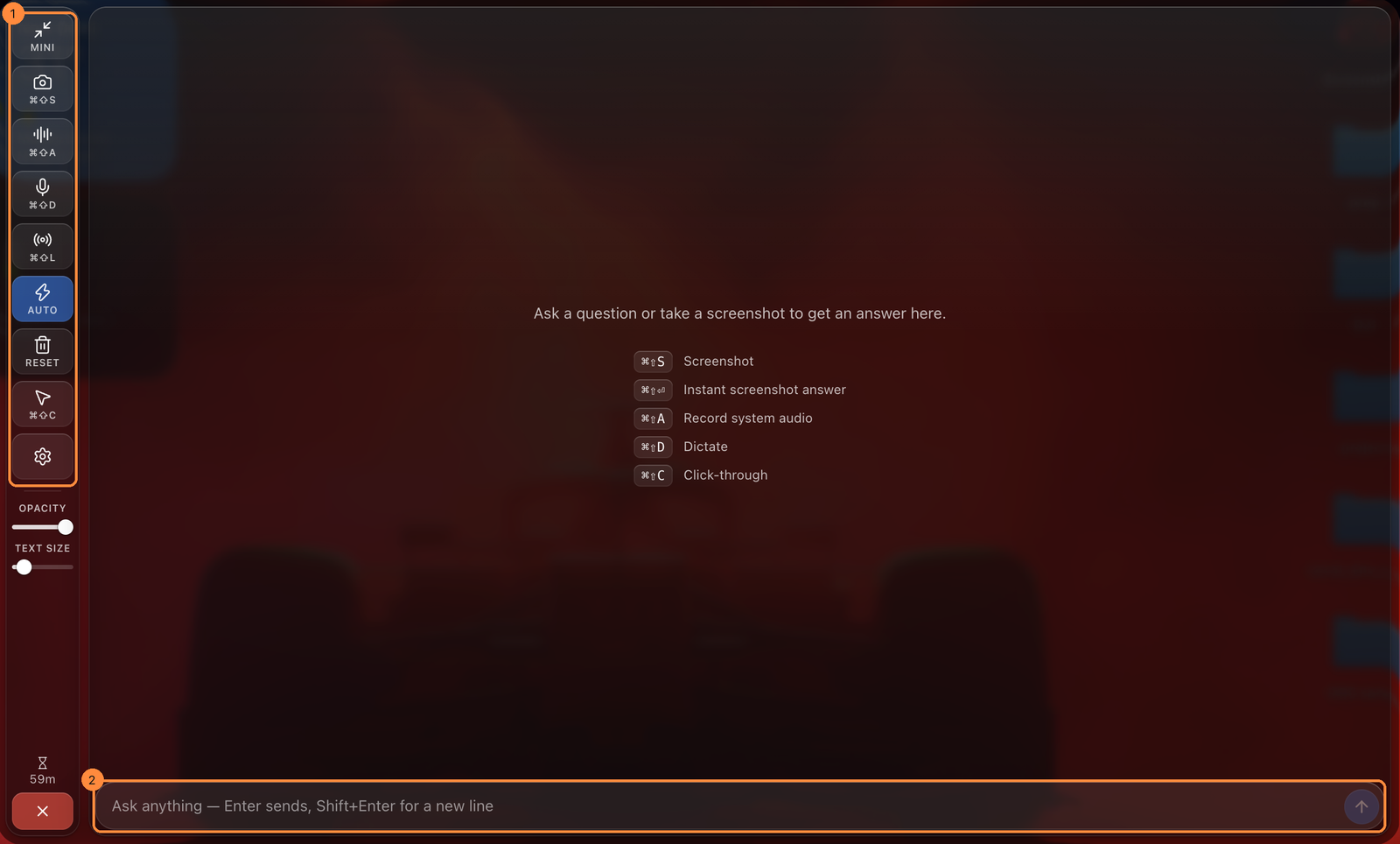
The app opens as a translucent overlay on top of your other windows. Type a question at the bottom and press Return, or use the toolbar on the left. The timer at the bottom of the toolbar shows how much of your session is left.
- ⌘ ⇧ STake a screenshot of your screen
- ⌘ ⇧ ↩Screenshot and answer instantly
- ⌘ ⇧ ARecord system audio (what the interviewer says)
- ⌘ ⇧ DDictate with your microphone
- ⌘ ⇧ CClick-through — clicks pass to the window underneath
Use Opacity and Text size to make the overlay comfortable to read, Mini to shrink it, and Reset to clear the conversation.
The first time you use a feature, macOS asks for the matching permission. Click Allow (or turn the app on in System Settings when prompted):
- Screen & System Audio Recording — needed to take screenshots of the question on your screen and to hear the interviewer's audio.
- Microphone — needed only for dictation.
macOS may ask you to quit and reopen the app before a new permission takes effect.